How to Use AudioPen on Windows
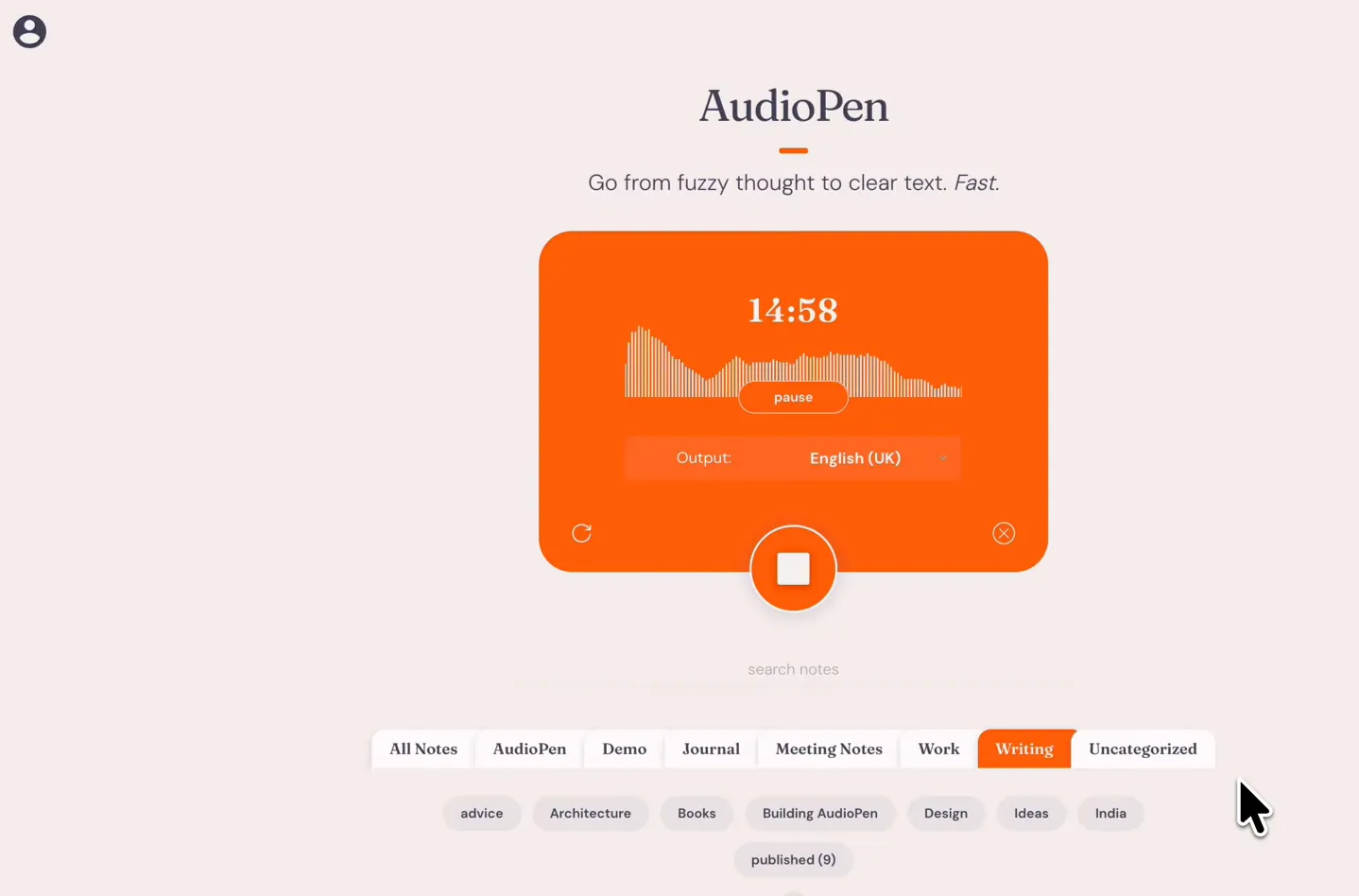
The short answer: there is no Windows .exe to download — and you don’t need one. AudioPen runs fully in your browser at app.audiopen.ai, and on Windows you have 3 good setups: the plain web app, the AudioPen Chrome extension for one-click recording, or the web app pinned as its own desktop window. All of them use the same account and the same notes, and each takes under 5 minutes.
Route 1: the web app (works everywhere)
- Open app.audiopen.ai in any modern browser — Chrome, Edge, Firefox or Brave.
- Create a free account, or sign in.
- Click the orange record button and allow microphone access when the browser asks.
- Talk normally, stop the recording, and your polished note appears in seconds.
That’s the whole install. Notes sync to the same account you’d use on a phone.
Route 2: use AudioPen in Windows via the Chrome extension
The AudioPen Chrome extension puts a record button in your browser toolbar, so you can capture a thought without switching tabs.
- Open the official Chrome Web Store listing — also linked on our download page; the official extension ID starts with
mgbilpbm. - Click Add to Chrome, then pin the icon from the puzzle-piece menu.
- Click the toolbar icon, record, and the note lands in your AudioPen account.
It also works on Edge and other Chromium browsers that accept Chrome Web Store extensions.
Route 3: pin it like a desktop app
Chromium browsers can wrap the web app in its own window, taskbar icon included:
- Open app.audiopen.ai in Chrome or Edge.
- Open the browser menu and choose Cast, save and share → Install page as app (Chrome) or Apps → Install this site as an app (Edge).
- Name it AudioPen and confirm — it now launches from the Start menu like any Windows program.
Why isn’t there a native Windows app?
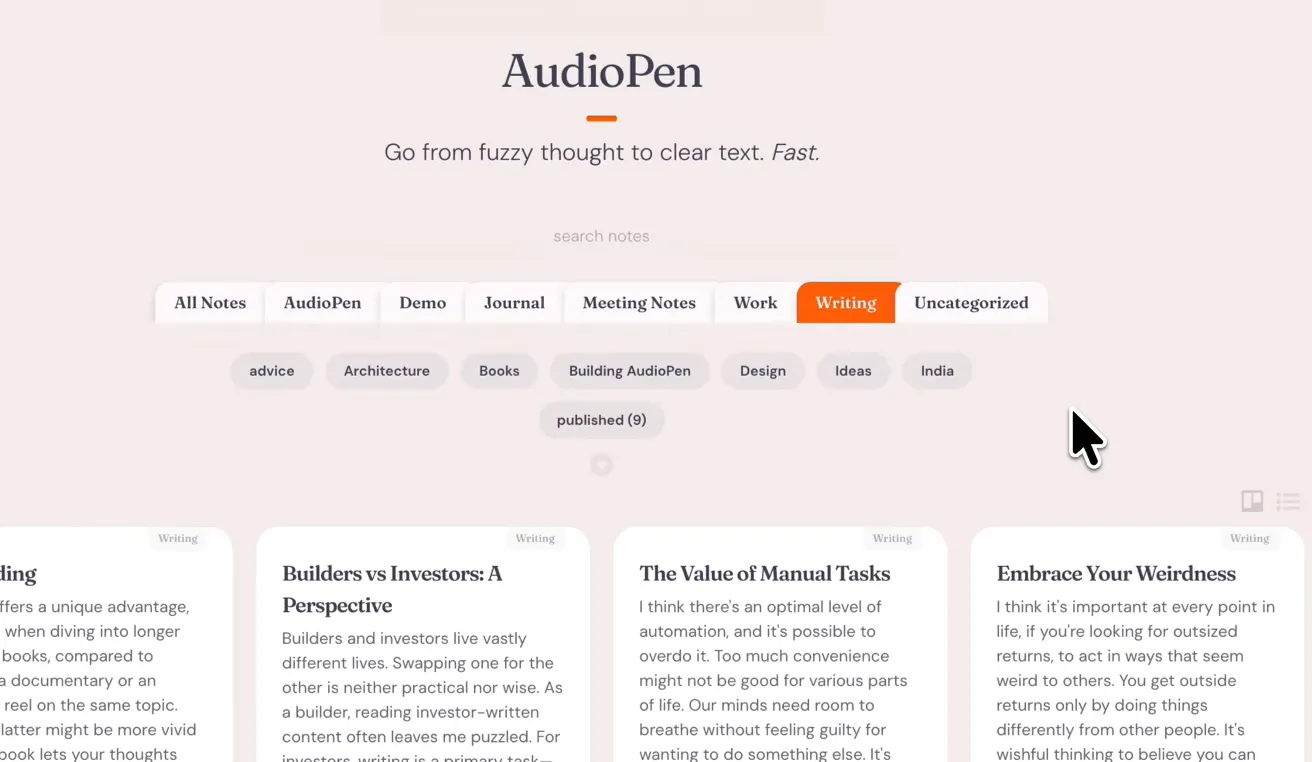
AudioPen is a web-first product: the web app is where the full feature set ships, and the native apps exist for phone-specific tricks like the iOS voice keyboard. On Windows the browser already provides everything the product needs — microphone, sync and notifications — so a separate installer would add nothing. The one genuinely Apple-only feature is system-wide Voice Typing, which relies on Apple Silicon.
Fix: the record button can’t hear you
If recording starts but nothing is transcribed, it’s almost always microphone permissions:
- Click the padlock icon in the address bar and set Microphone to Allow for app.audiopen.ai.
- In Windows Settings, open Privacy & security → Microphone and make sure your browser is allowed to use it — Microsoft’s own microphone troubleshooting guide covers the edge cases.
- If you use a headset, check the correct input device is selected in Settings → System → Sound.
Reload the page after changing permissions, record 5 seconds as a test, and you’re set.
Everything above works on the free plan — Prime only matters once you want 15-minute notes or file uploads. See what AudioPen Prime costs, or grab the apps on the download page.